

trackr iO Release: Weekly Workload, and What is Ready Behind the Scenes (Web)
Release summary
These changes are in the web app.
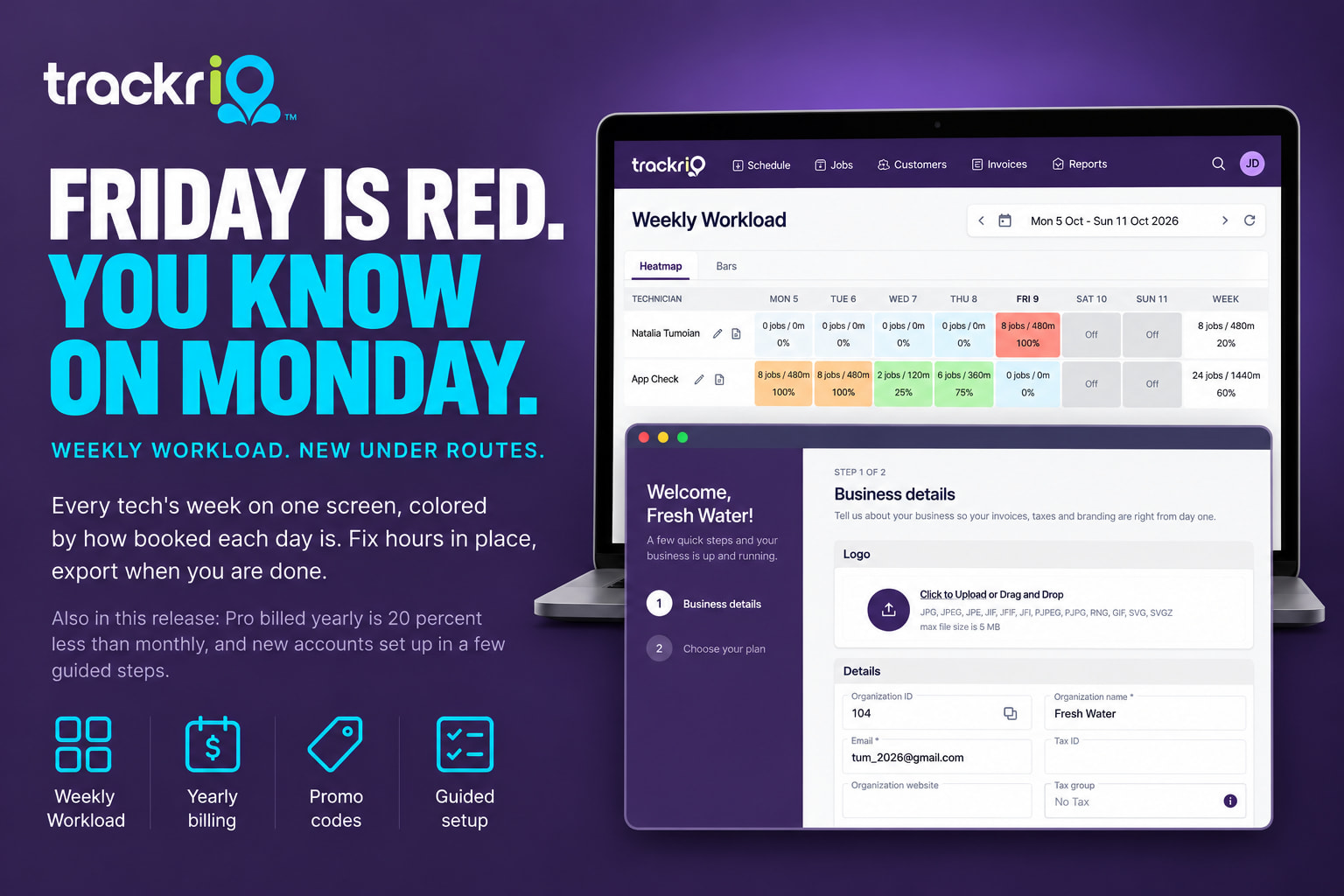
Weekly Workload shows route managers the whole week at once. Every mobile technician's week is laid out as a capacity heatmap, so an overbooked Friday shows up red on Monday morning.
Routes
Weekly Workload: spot overbooked days a week ahead
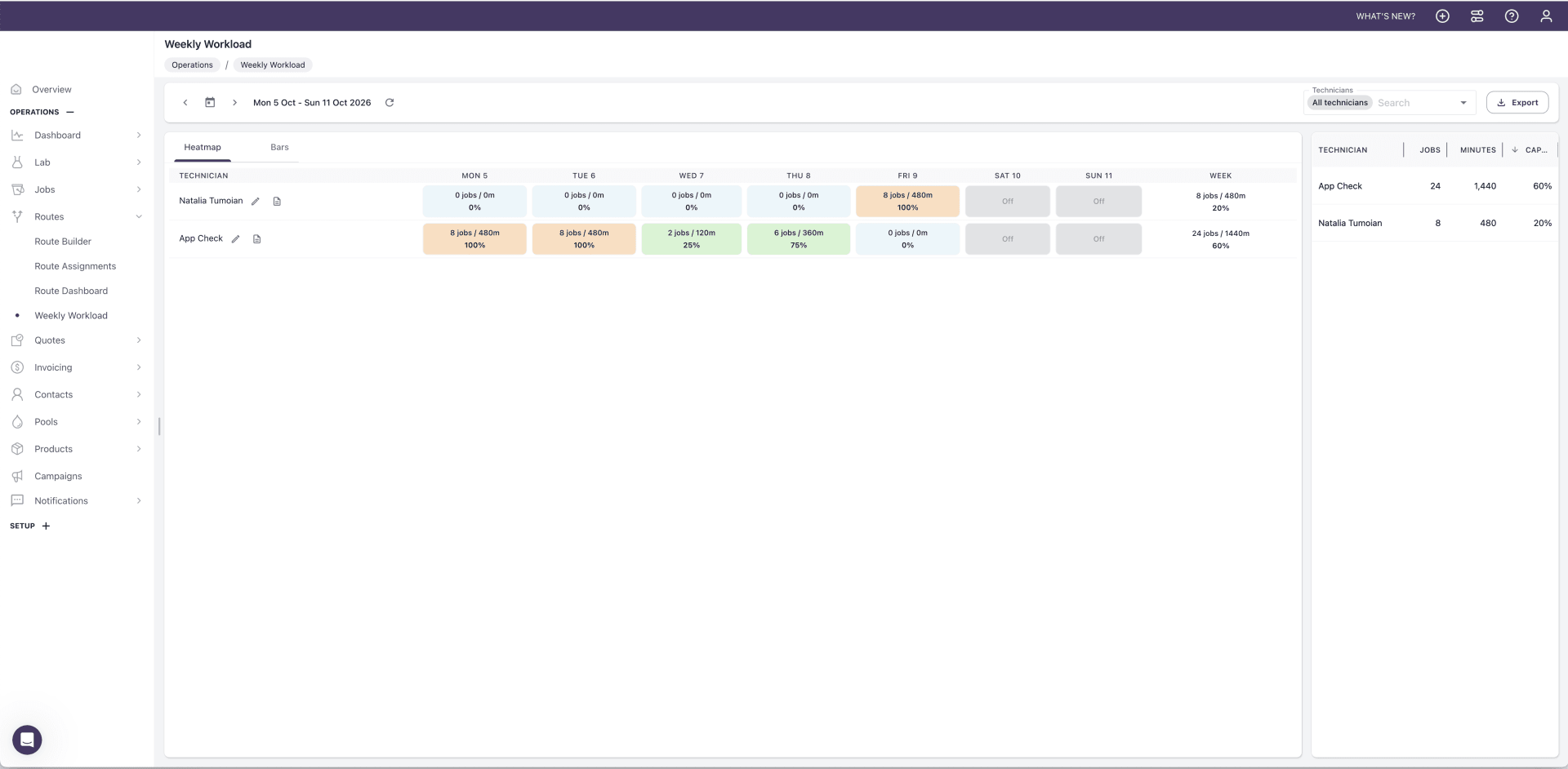
Weekly Workload is a new page under Routes. Technicians are rows, days are columns, and each cell is colored by how booked that day is against the technician's working hours. Red is overbooked, amber is nearly full, green has room, pale is a quiet day, and grey is a day off. Each cell shows the jobs, the booked minutes, and the capacity percentage, with a week total per technician.
The page lists the technicians who use the mobile app, and capacity comes from each technician 's working hours.
How it works
Overbooked days are ca lled out as red chips above the grid. Click a chip, or any cell, to open the Route Dashboard for that technician and day.
If you manage team members, click the pencil on a technician row to edit their working hours right there. The heatmap updates when you save.
Switch to the Bars tab for a bar chart per technician, by jobs or by minutes.
Filter to one or more technicians, step between weeks with the navigator, and sort the totals grid.
The week and filter are part of the page address, so a shared link opens the same week and filter.
Export the week as a PDF or CSV. The PDF includes the chart when you export from the Bars tab.
New account setup
New accounts now go through a guided setup before they land in the app. The steps are Business details, Choose your plan, and card, and progress is saved between steps. Which steps appear, and whether each is required, is set per environment, so the card step can be added or removed through [environment configuration.
Today the card step is off, so a new account sees two steps: Business details and Choose your plan. Once the card step is on, Sales or Onboarding can let a specific organization in without a card from the Support CRM. The account still needs a plan, and the normal rule applies again as soon as the customer adds a card.
Annual billing and discount codes
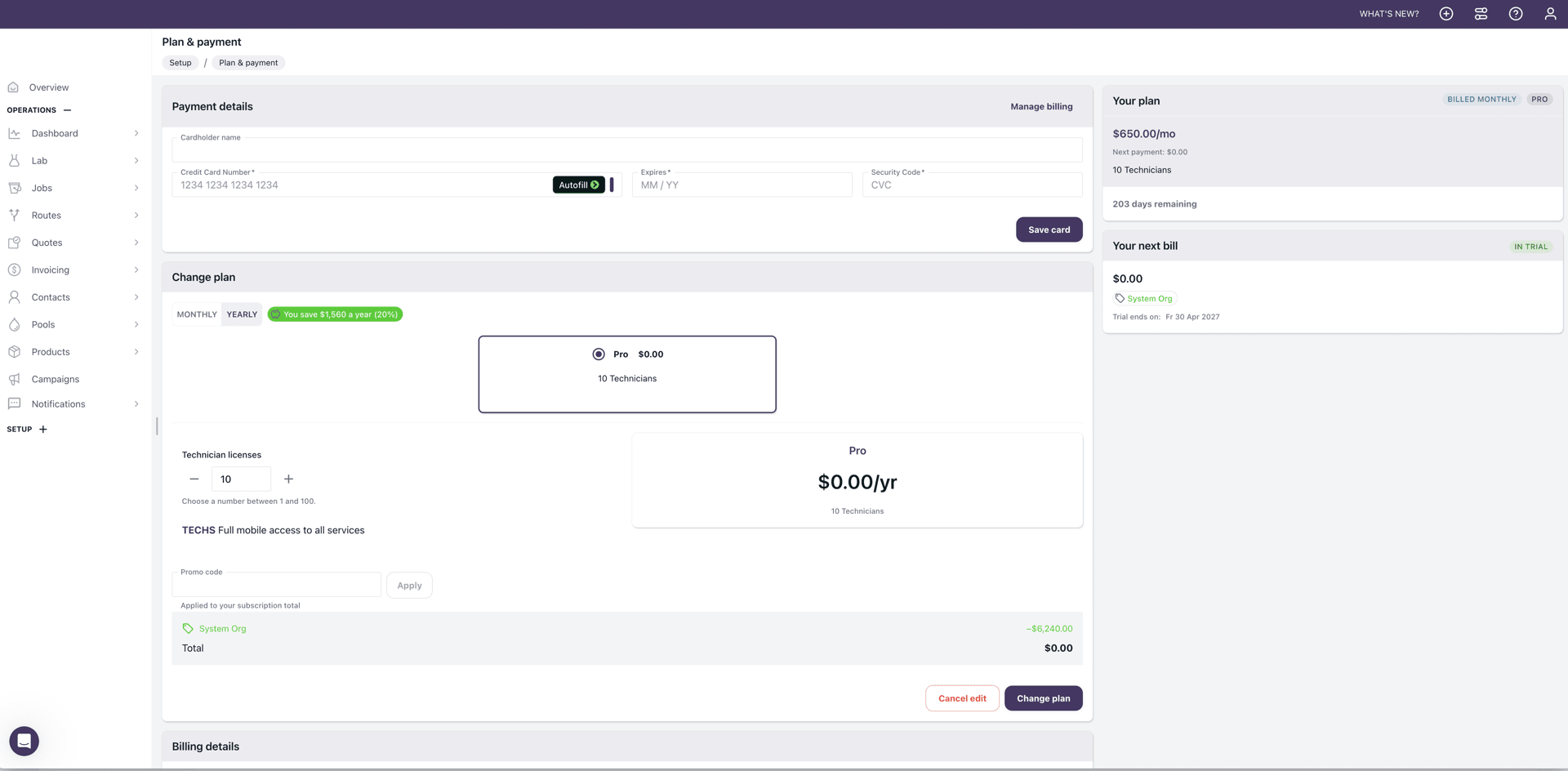
The Pro plan can be billed monthly or annually. The annual option is shown per environment and is off until the annual price is agreed. Moving to annual charges the fu ll year immediately. Moving back to monthly waits until the paid year ends. Adding a technician mid-year is charged immediately for the months left, and the estimate is shown before you confirm.
Discount codes are created in Chargebee and shared between Sales and Onboarding, with nothing to set up per customer. Give the code to a prospect before they sign up. They enter it on the Choose your plan step, click Apply, and see straight away whether it appl ied. Existing customers can apply a code on Plan and Payment the same way. A code can be restricted to annual, given an end date, and limited to the first year. All of that is set in Chargebee, and so are subscription prices, so a price change needs no release.
In this release
For customers: Weekly Workload under Routes, a capacity heatmap per technician and day with inline working hours, drill down to the Route Dashboard, and PDF or CSV export.
For us: guided setup for new accounts with per-environment steps and a Support CRM exception for accounts without a card, and annual billing with discount codes managed in Chargebee, hidden until the price is agreed.